
The Dashboard
When you log into CloudFFL OS, the first thing you see is the home screen. Think of it as your front desk — it gives you quick access to every part of the system.
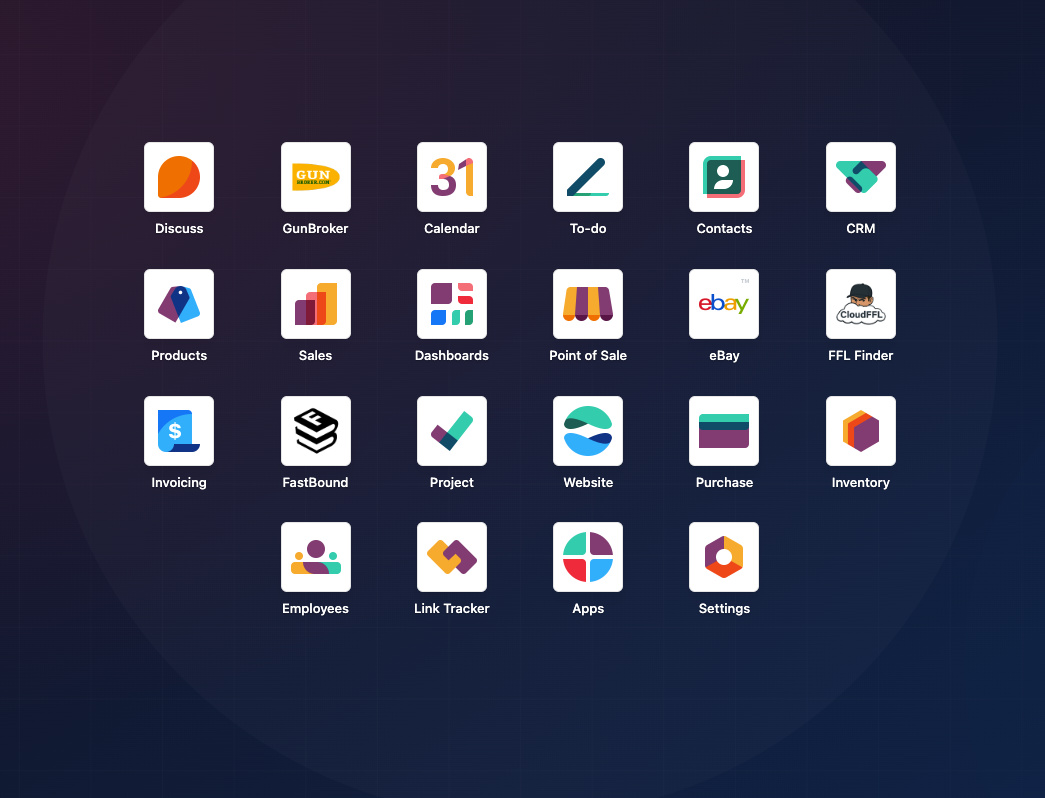
The App Grid
The home screen shows a grid of app icons, similar to apps on your phone. Each icon represents a different part of CloudFFL OS:
- Sales — Quotations, sales orders, and customer management
- Purchase — Ordering from your distributors
- Inventory — Stock levels, transfers, and receiving shipments
- Contacts — Customer and vendor records
- Invoicing — Invoices and payment tracking
Click any app icon to open it. The apps you will use most as an FFL dealer are Sales, Inventory, and Purchase.
Getting Back to the Home Screen
No matter where you are in CloudFFL, you can always get back to the home screen:
- Look for the grid icon (sometimes called the "waffle" icon) in the top-left corner of the screen.
- Click it to return to the app grid.
Rearranging Apps
You can drag and drop app icons to rearrange them in whatever order works best for you:
- Click and hold on any app icon for a moment.
- Drag it to the position you want.
- Release to drop it in place.
A dashed placeholder shows where the app will land as you drag. Your custom layout is saved automatically and will be there next time you log in.
Note: Drag-and-drop works on desktop browsers. On tablets and phones, the apps display in their default order.
Hiding Apps
If there are apps on your home screen that you never use, you can hide them to reduce clutter:
- Right-click on the app icon you want to hide.
- A small menu appears — click Hide this app.
- The app disappears from your home screen immediately.
Restoring Hidden Apps
Changed your mind? You can bring back any hidden app:
- Click your user avatar (profile picture) in the top-right corner of the screen.
- Select My Profile (or Preferences).
- Scroll down to the Dashboard Settings section.
- You will see a list of your currently hidden apps displayed as tags.
- Click the X on any tag to unhide that app.
- Click Save.
The app will reappear on your home screen the next time the page loads.
Activities
You may notice an Activities area on your home screen or within apps. This shows tasks needing your attention:
- Quotations waiting to be confirmed
- Purchase orders to approve
- Inventory transfers to process
- Overdue follow-ups
Click any activity to jump directly to the record that needs action. Once you complete it, the activity disappears from your list.