
Searching & Filtering Records
As your business grows, you will have hundreds or thousands of records — customers, sales orders, products, and more. CloudFFL gives you powerful search and filter tools to find exactly what you need in seconds.
The Search Bar
At the top of every list view, you will see a search bar. To find a record quickly:
- Click in the search bar.
- Start typing what you are looking for (a customer name, product name, order number, etc.).
- CloudFFL will suggest matching results. Click one to apply the filter, or press Enter to search.

Using Filters
Filters let you narrow down a list to show only specific records. To use them:
- Click the search bar or the filter icon (funnel icon).
- Click Filters to see available filter options.
- Select a filter. For example, in the Sales Orders list you might choose "My Orders" or "This Month."
- The list updates to show only matching records.
You can apply multiple filters at the same time. For example, filter by "This Month" AND "Confirmed" to see only confirmed orders from this month.
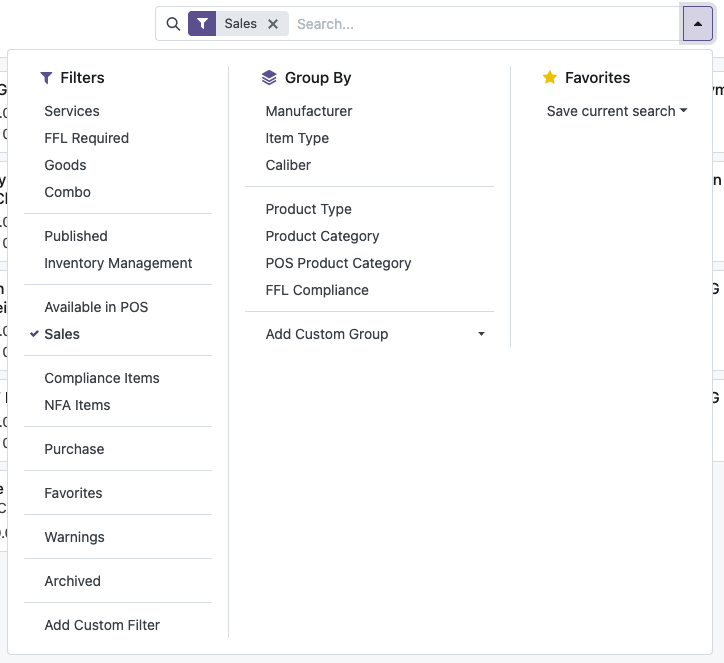
Group By
The Group By option organizes your records into groups. For example:
- Group sales orders by Customer to see all orders for each customer together
- Group products by Category to see Handguns, Rifles, Ammo, etc. in separate groups
- Group by Salesperson to see who sold what
- Click in the search bar.
- Click Group By.
- Select how you want to group the records.
Saving Favorite Searches
If you use the same search or filter combination regularly, you can save it:
- Set up your filters and search terms the way you want them.
- Click in the search bar.
- Click Favorites → Save current search.
- Give it a name (e.g., "This Week's Sales") and click Save.
Your saved search will appear under Favorites for quick access.
Tip: Some useful searches for FFL dealers: "All sales this week," "Orders awaiting delivery," "Low stock products," or "Unpaid invoices."